A decent IPTV player for Android devices. At the time of writing the instructions, the latest version of the player is 1.9.4.0.
Download the apk file with the player, install the player.
Set up the player for our service.
Launch it, the following page opens:
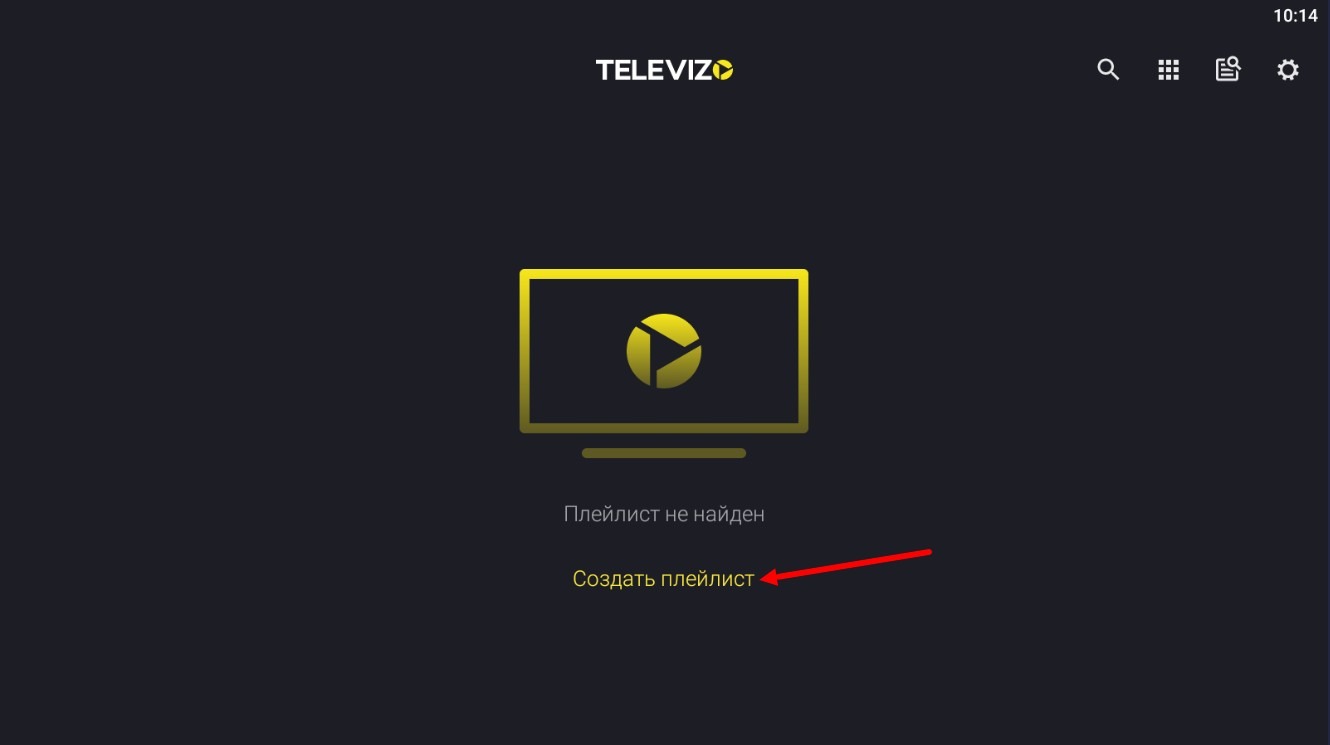
Where you need to press "Create Playlist". A warning window will open:
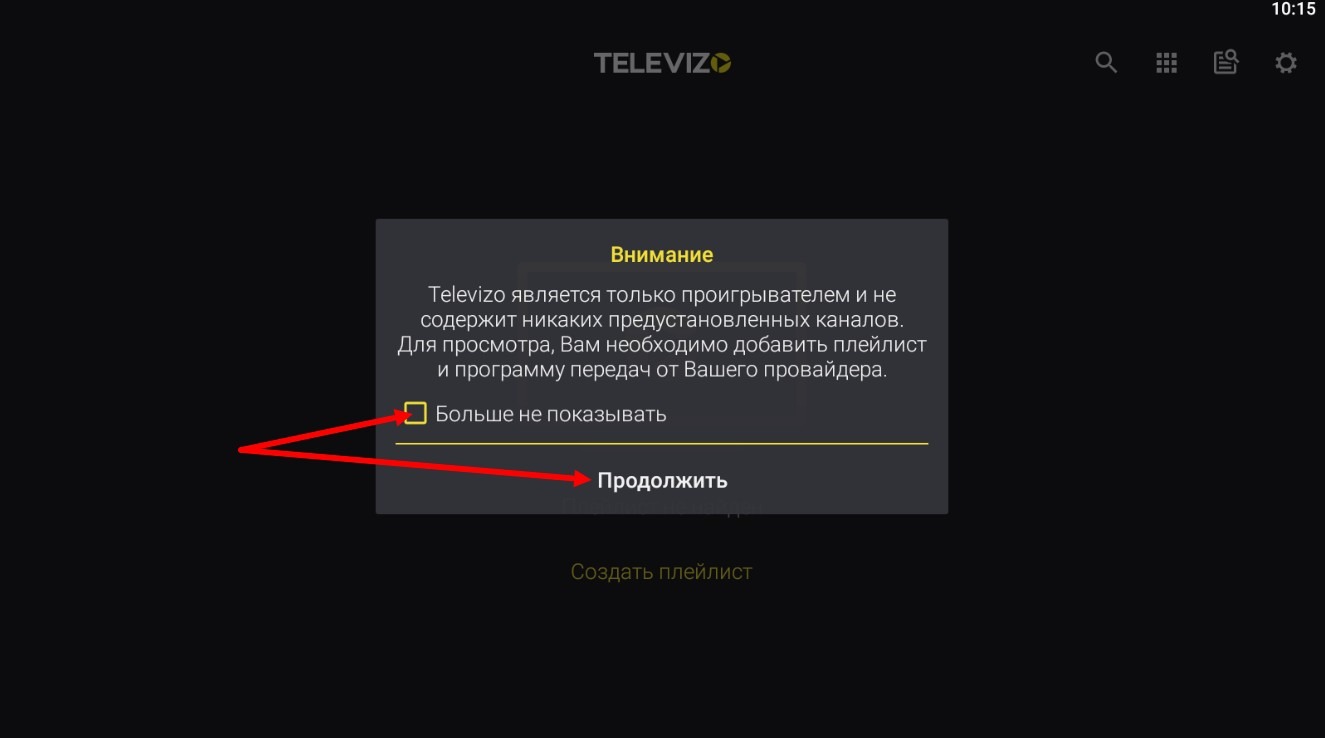
Check the box "Do not show again" and click "Continue". The following settings window opens:
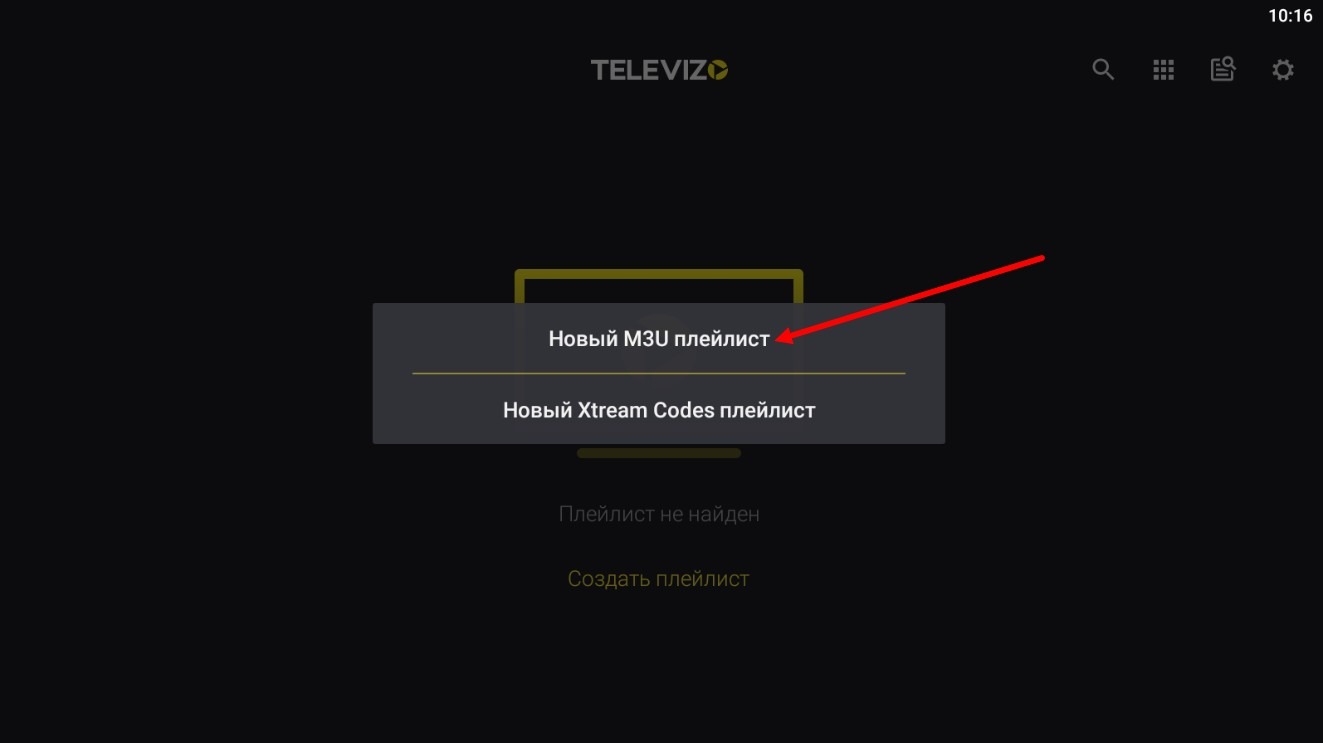
Click "New M3U Playlist". The following settings window will open for entering playlist data:
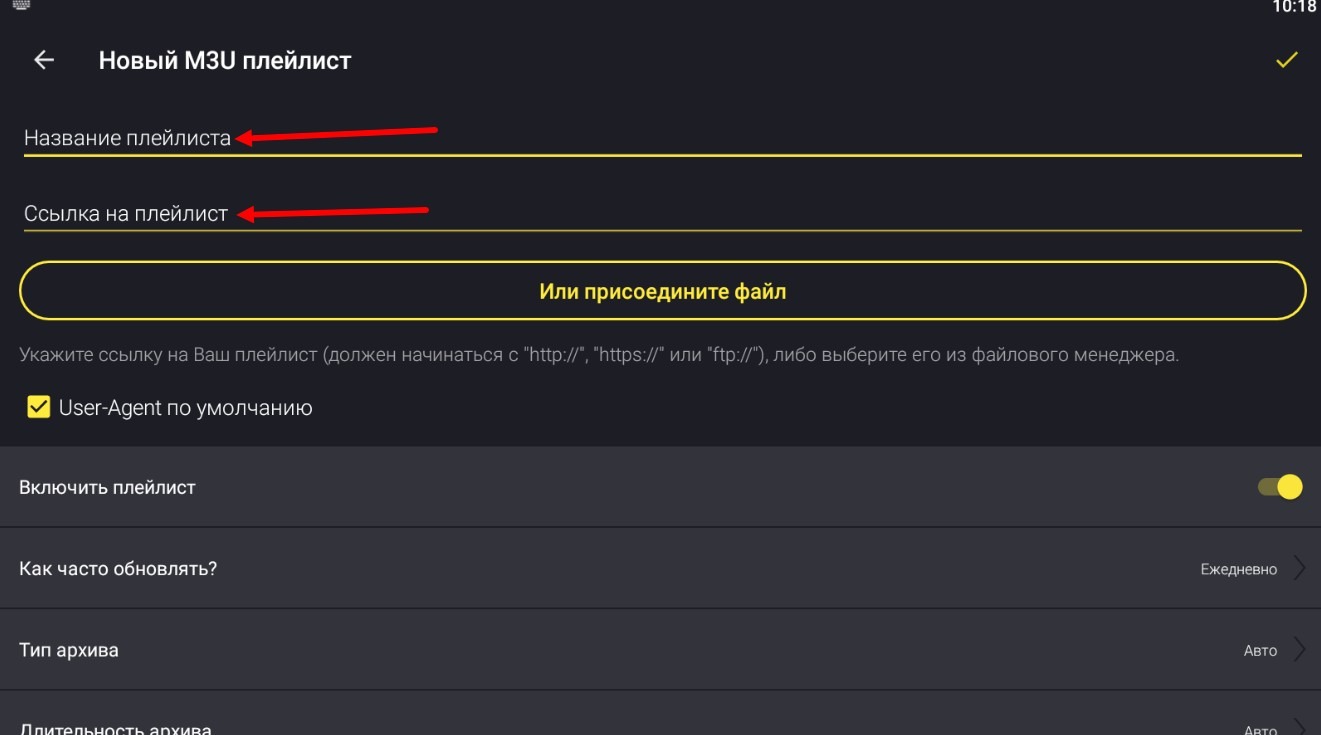
Enter the name of the playlist, the link to the playlist (or playlist address) and click "Save" - checkmark in the upper right corner of the page.
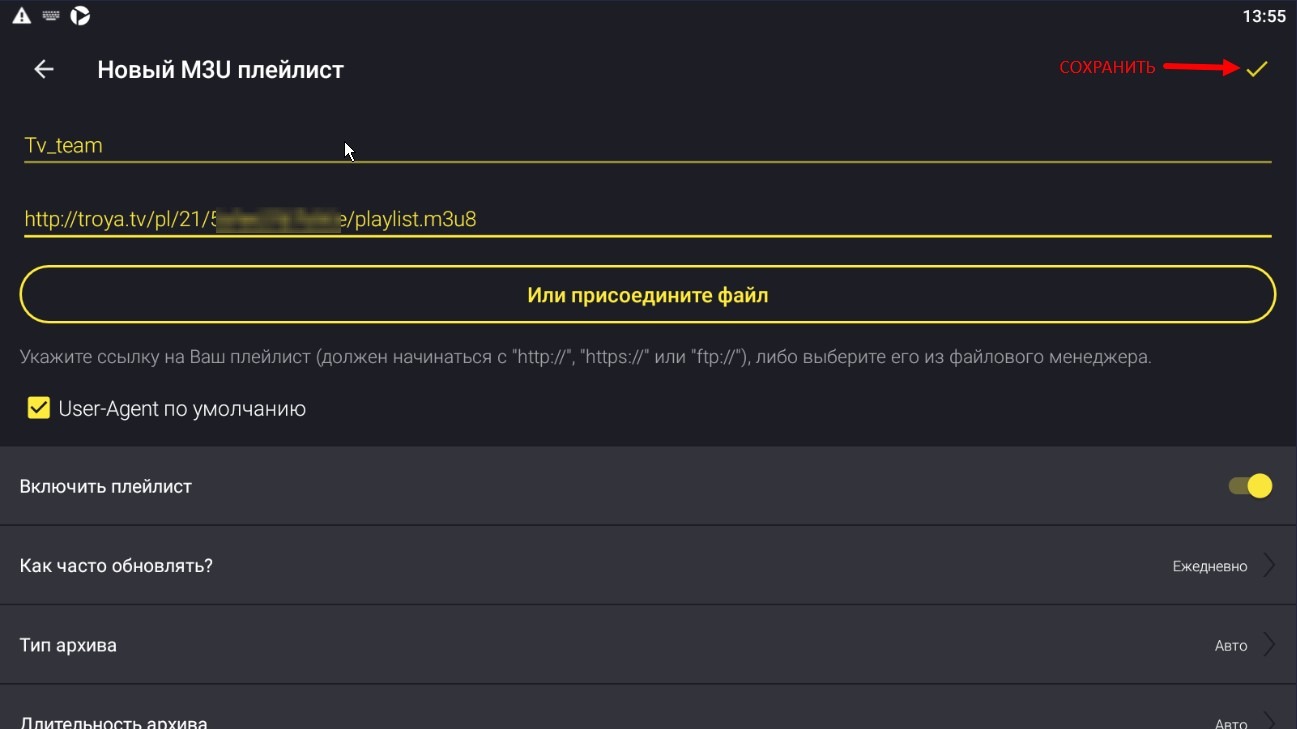
Where to get the playlist link read here 6.1 Where to get a playlist? Where to get a playlist link? We take the link for the playlist "Televizo".
After pressing "Save", the player window will open where you can start viewing:
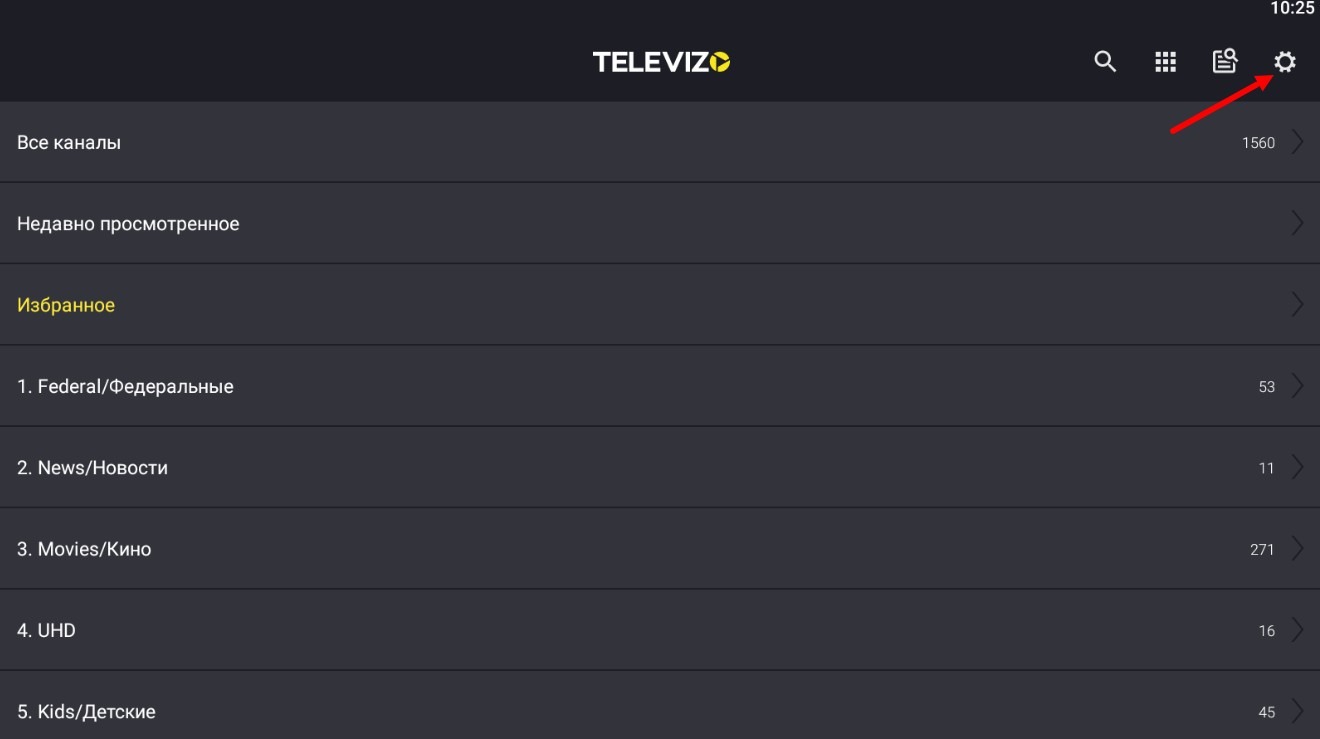
and, if you took the "Televizo" playlist, then the TV program (EPG) is counted from the playlist and you can start viewing. It will take a few minutes to load the EPG.
Why didn't we finish the instructions a couple of sentences ago? In the "Televizo" playlist, the EPG is already included in the list itself and the player reads it from there, the EPG depth in this list is 3.1 (3 days archive and 1 day of TV program ahead). If you need to, manually adjust the EPG depth by disabling in the player settings the download of EPG from the playlist (otherwise, with each playlist update in the settings, a second link to EPG will appear).
You can read about EPG depth here 3.1 Where to get a TV program (EPG)? Why isn't EPG displayed?
So, we return to the player settings, by clicking on the gear in the upper right corner of the window.
Player setup window opens:
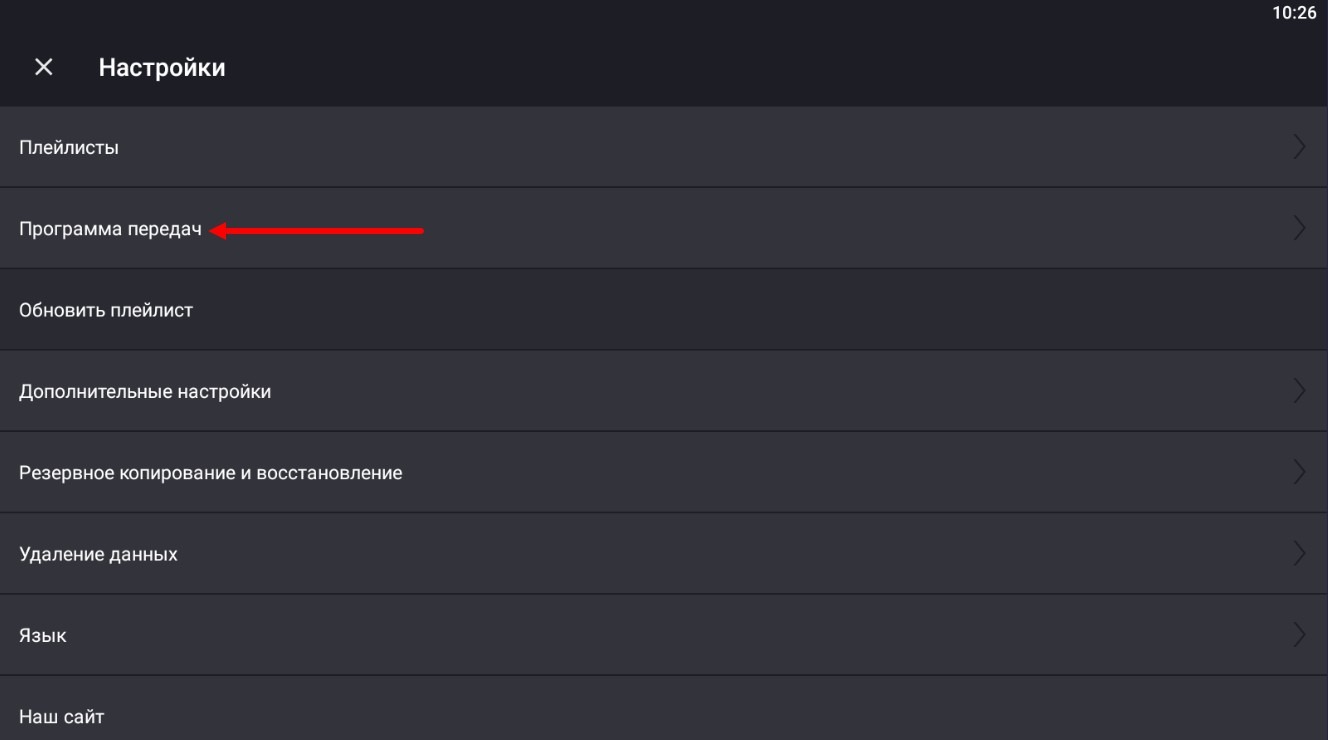
In which we need to select the item "TV Program". The first time the player will inform us that there is no TV program:
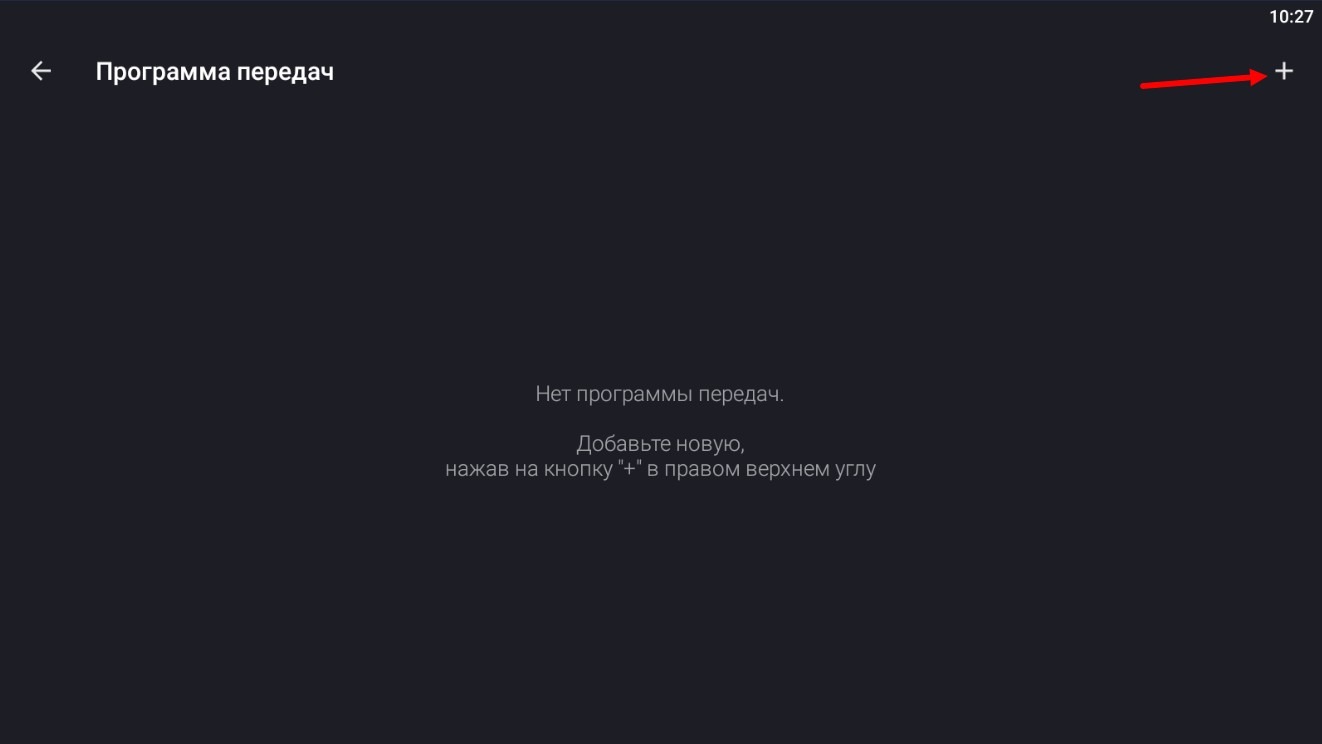
and will offer to add a new one. Press plus in the upper right corner, a window will open:
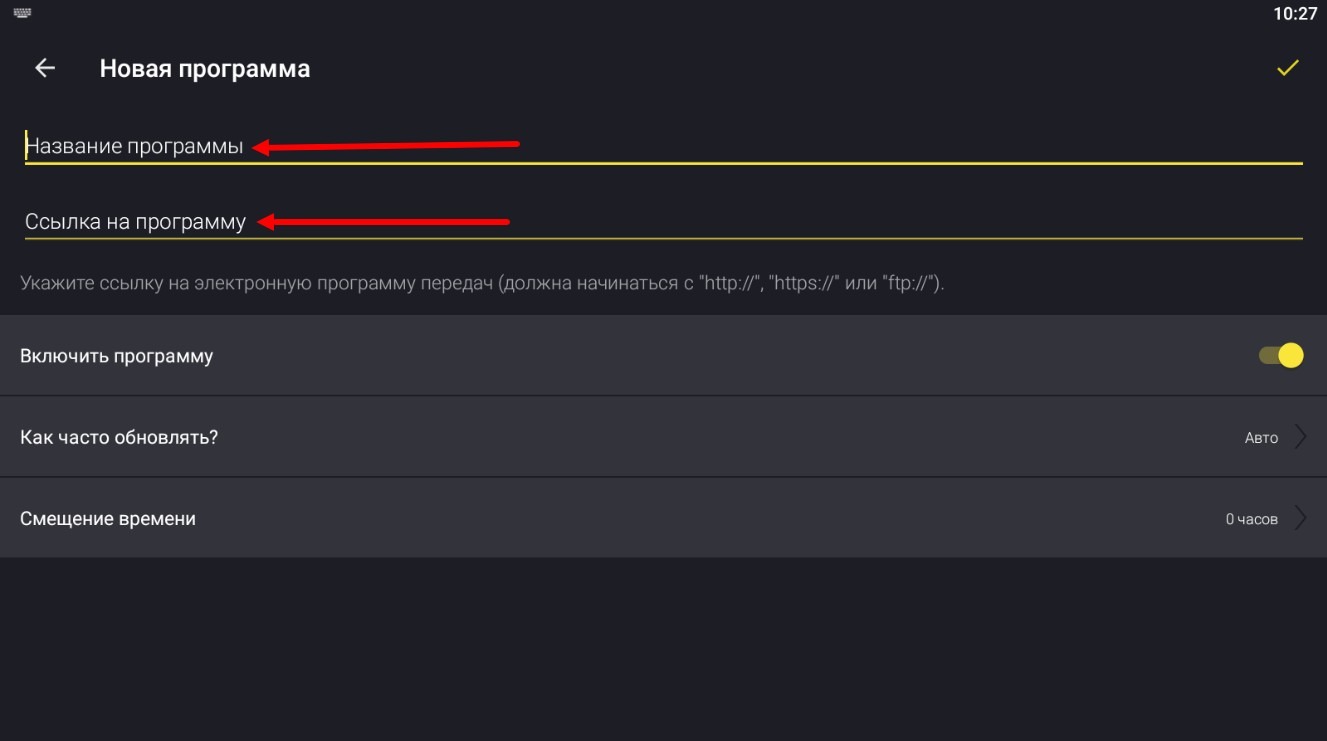
in which you need to enter the name of the TV program and the EPG link.
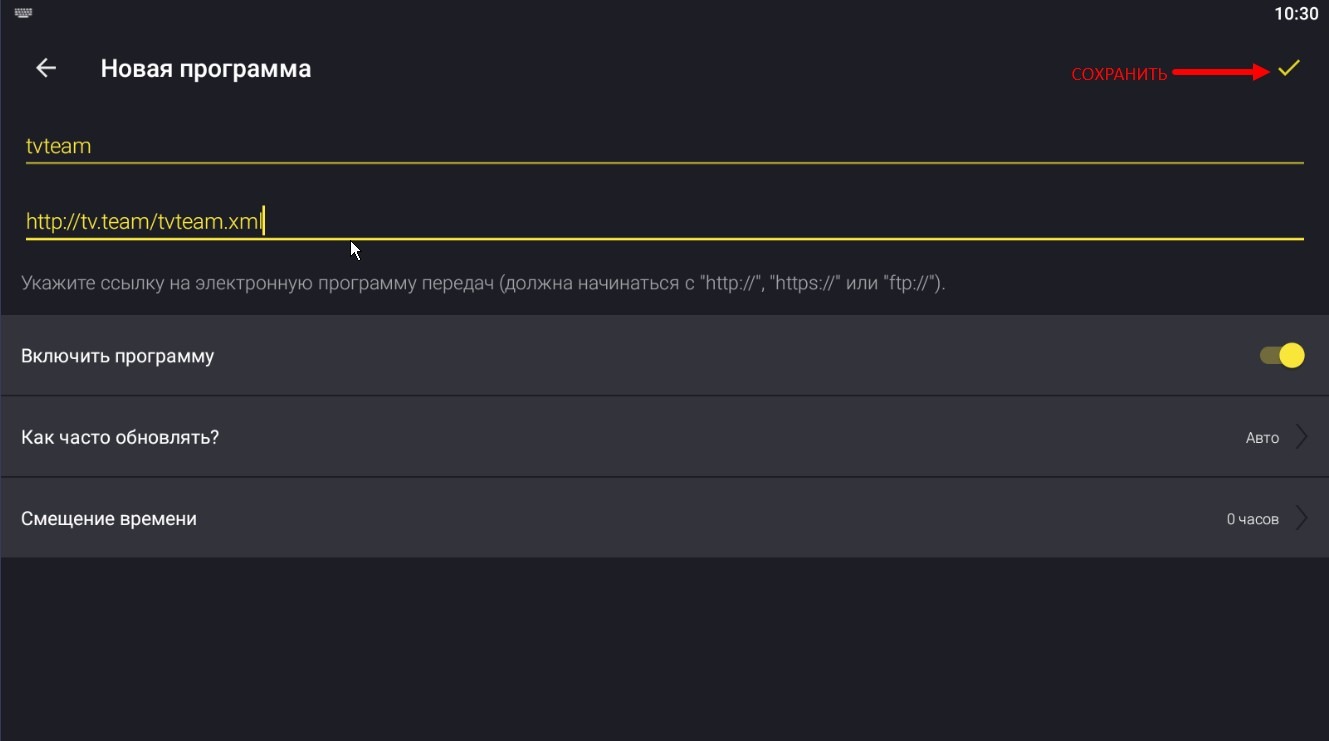
Where to get EPG link you can look here 3.1 Where to get a TV program (EPG)? Why isn't EPG displayed?
Here you can specify the link with EPG depth, for example like this https://tv.team/tvteam.xml.3.1, getting 3 days archive and 1 day TV program ahead. The size of such file will be much smaller than, for example, 7.7 and your weak device will not hang.
Click "Save" - checkmark in the upper right corner of the window. The TV program will start downloading in the background, the process is not instantaneous.
And we are for now leaving the player settings, by clicking on the icons indicated in the screens:
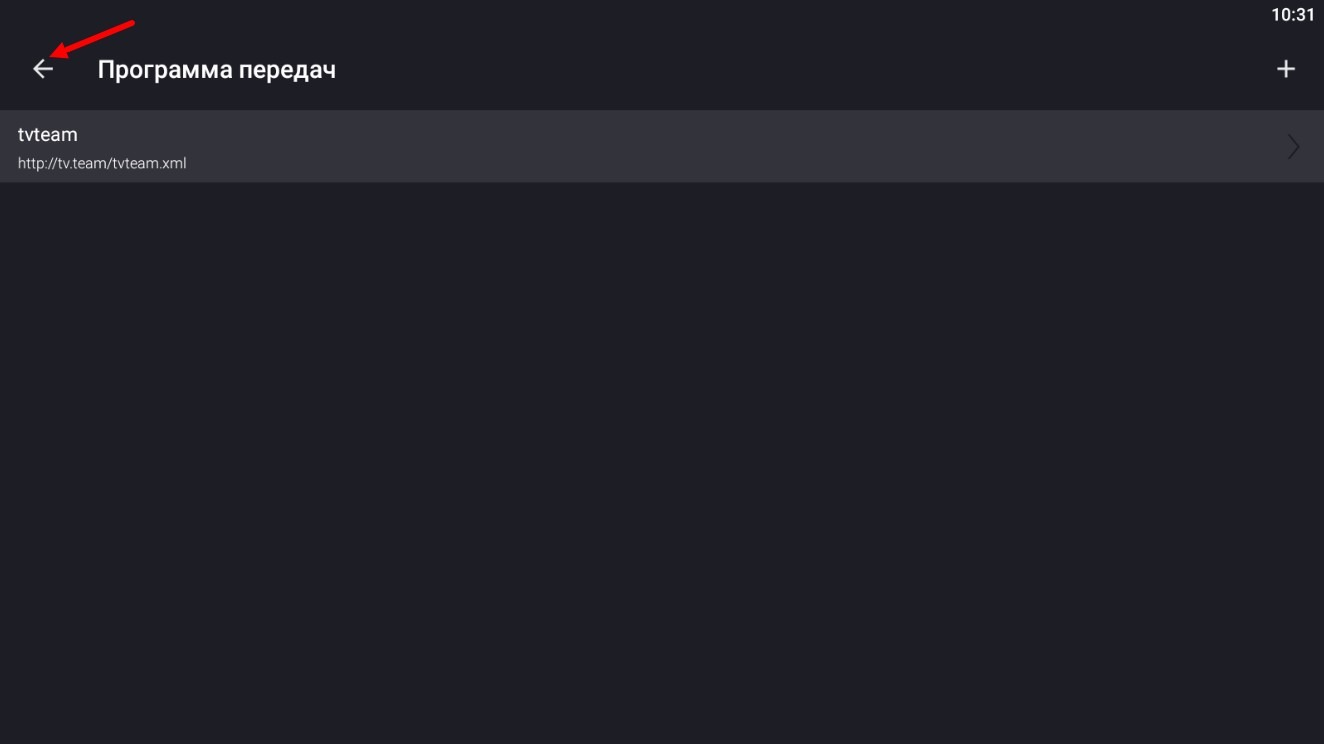
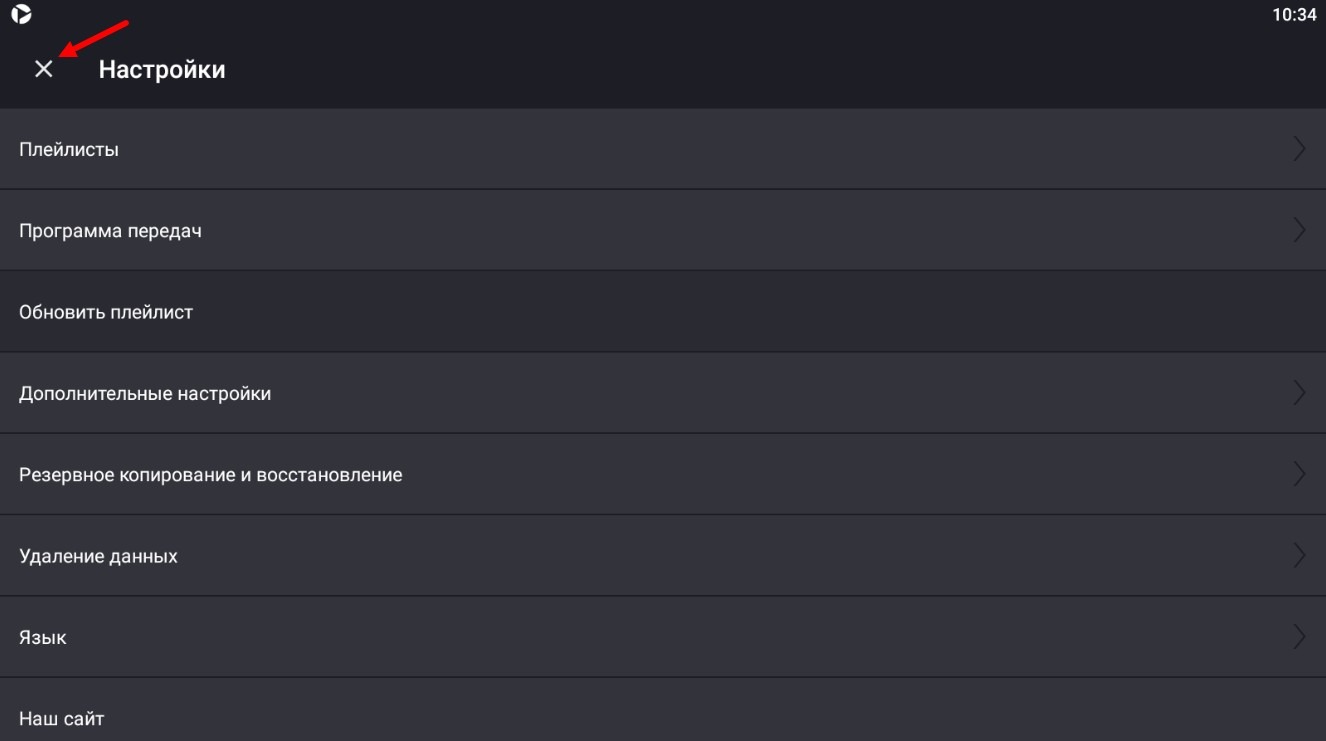
The player window opens with the channel list of the playlist:
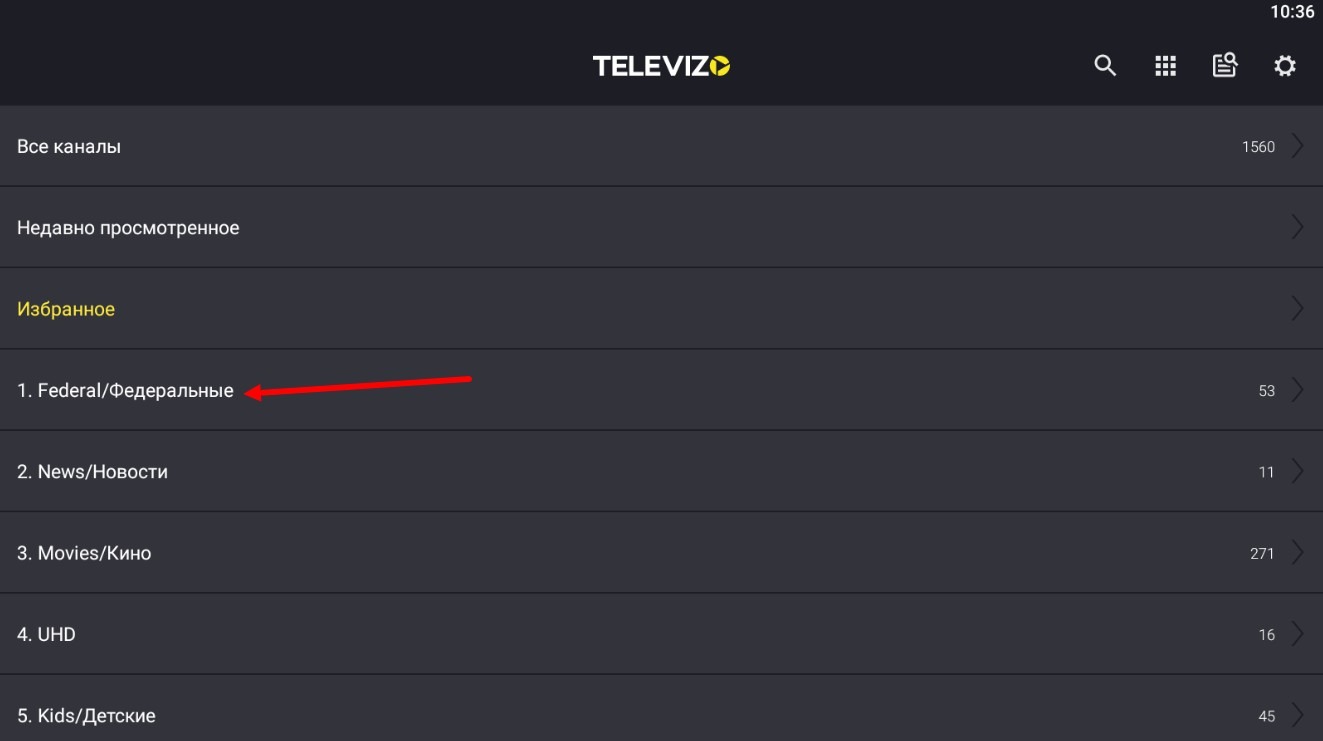
Let's go, for example, to the "Federal" channels category:
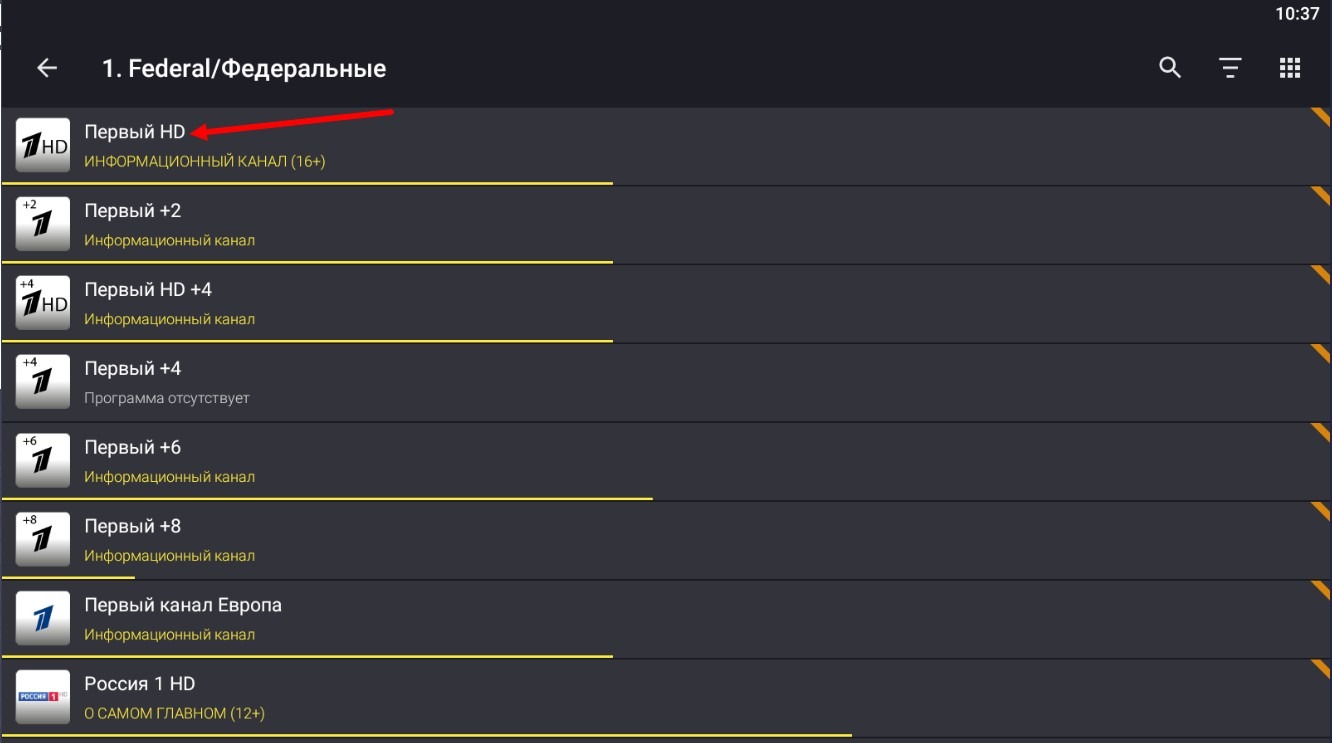
a window with a list of channels in this category will open. Select the channel and start watching
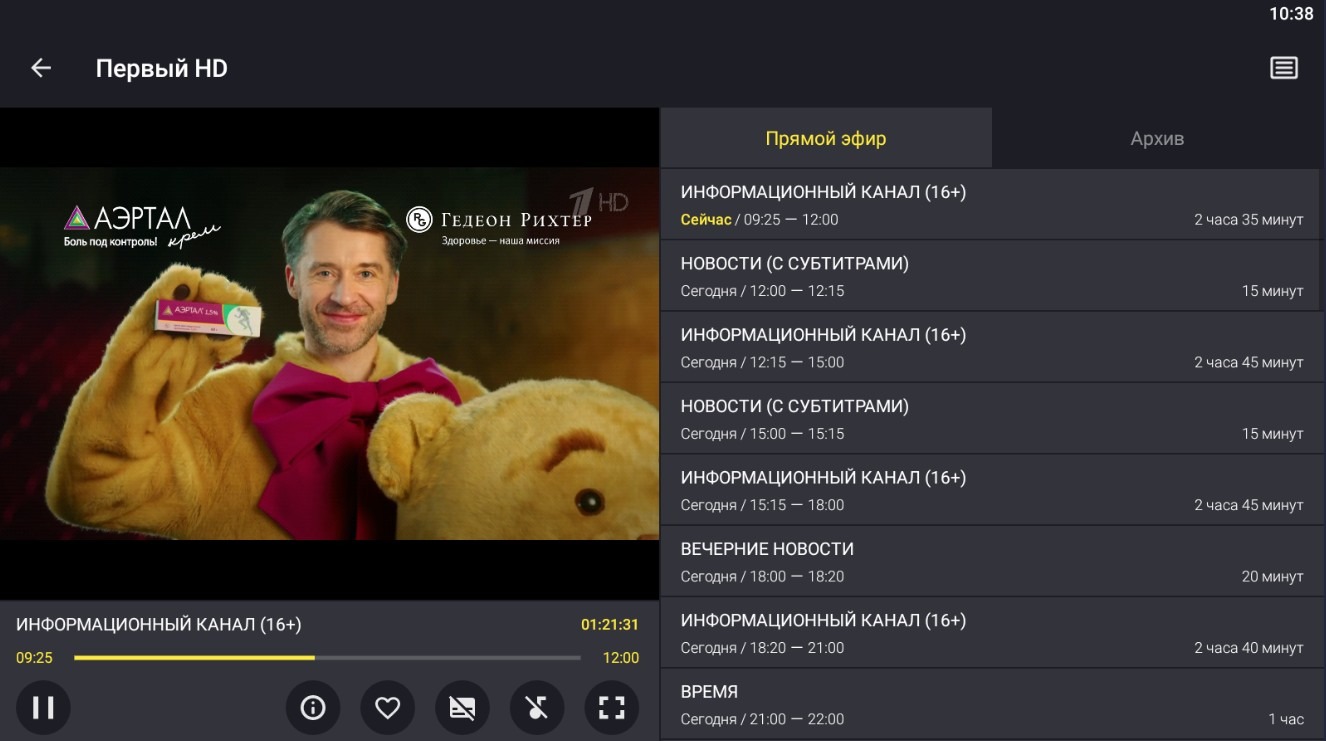
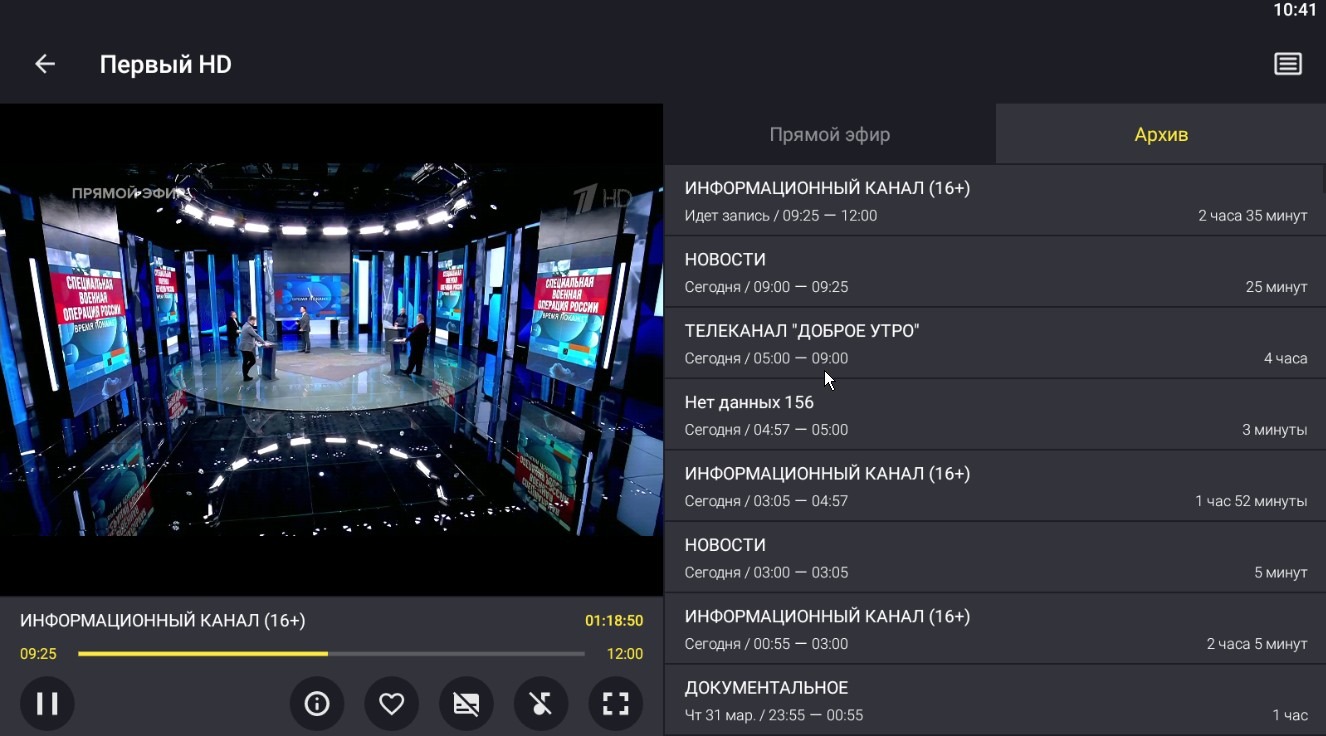
On the right you can choose to watch live or archive, archive broadcasts go from top to bottom
The player has a Premium version, you can read about the advantages of the premium here - click. In principle, you can watch like this, but the author spends his personal time supporting the player, and the cost of the premium, which you can install on an unlimited number of devices with the player, is quite ridiculous - 400 rubles, so everyone can afford to spend this amount to support a good player.
The fact that you don't have a premium version will be visible in the player menu
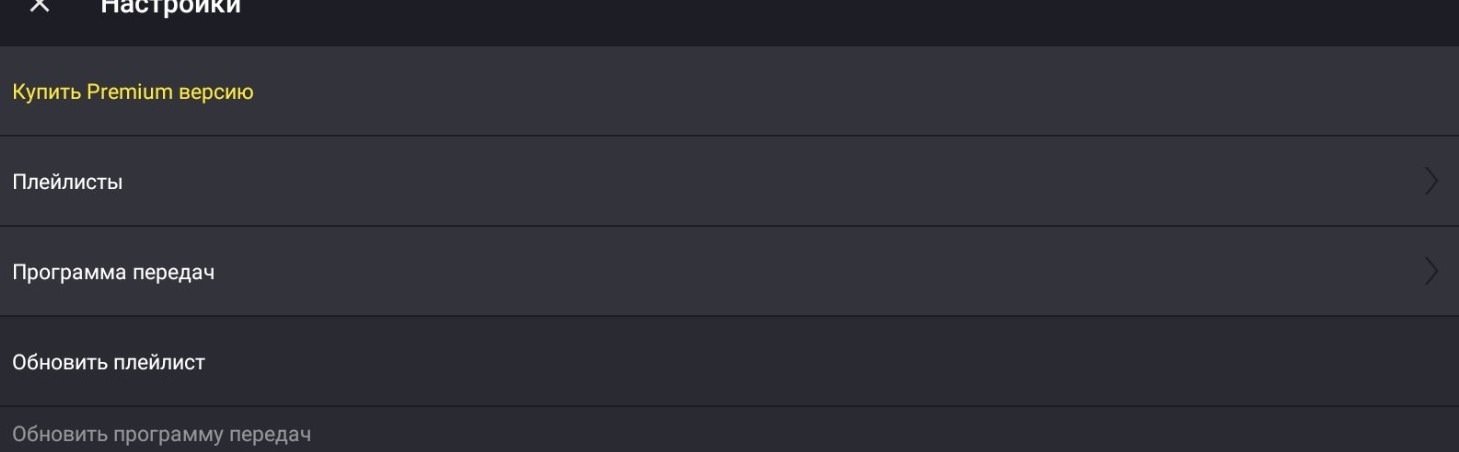
the menu will include the item "Buy Premium version", by clicking on which you will proceed to purchase the premium through Google Play. There is nothing complicated further, so I will not describe this.
And what should residents of Russia do, who have been disabled from using Google Play fully? Let's explore this in more detail.
Users from Russia need to install Huawei AppGallery, this application can be installed on any Android device. Through AppGallery you will be able to buy the premium version of the player.
We will install AppGallery through the browser using this link https://appgallery1.huawei.com/#/app/C27162 since Google Play search for this application didn't give me anything meaningful.
After that, log into AppGallery, you need to find and install the HMS Core application. From this application, you can install the player on your device.
After installing the player, register and log into your AppGallery account, here the instructions with pictures in English
Now you can log into the player, click "Buy Premium version" and make a premium purchase.
Take a screenshot of the premium payment and write to the author's email televizoiptv@gmail.com, report that you have paid for the premium version and attach a screenshot of the payment. In response, the author will send you a code, which you will add to Google Play and will be able to activate the premium version of the player on any Android device where you have installed Google Play with your account.
Basically, the author will indicate this in the instructions in more detail.
The setup is a bit tricky.
Go to settings:
- Set up the playlist (EPG is not necessary, it's already included in the playlist).
Then go to additional settings:
- Automatically open in full screen - activate;
- Open the application at device startup - activate;
- Reload video stream - disable;
- Hardware acceleration of user interface - disable;
- Hide the playlist link - activate.
Go to groups and channels:
- Open the last channel viewed at application startup - activate;
- Show all channels group - activate;
- Deactivate everything else.
Exit from groups and channels.
Go to the clock - turn them off, exit.
Go to text size - choose large.
That's all.
Now when the device starts up, the player and the last viewed channel will start, to view EPG on the channel or turn on the archive long press the "OK" button, what's orange is the archive, what's green is now, what's gray is what will be.
Scroll channels left and right, the down button brings up the channel list, the up button brings up the description of the current program, the back button returns to the list of categories (2 presses).